
There are situations when in a specific WordPress installation, the latest version of Asset CleanUp doesn’t work properly or there’s a plugin bug that is just annoying in any WordPress setup (things like that could happen), and you would rather rollback to a previous version that is more stable and you know for sure that it worked fine in your WordPress environment.
There a few ways to do that. We’ll start with the most common one.
🟢 Remove the existing version and download and install the previous (or any other version you prefer) one
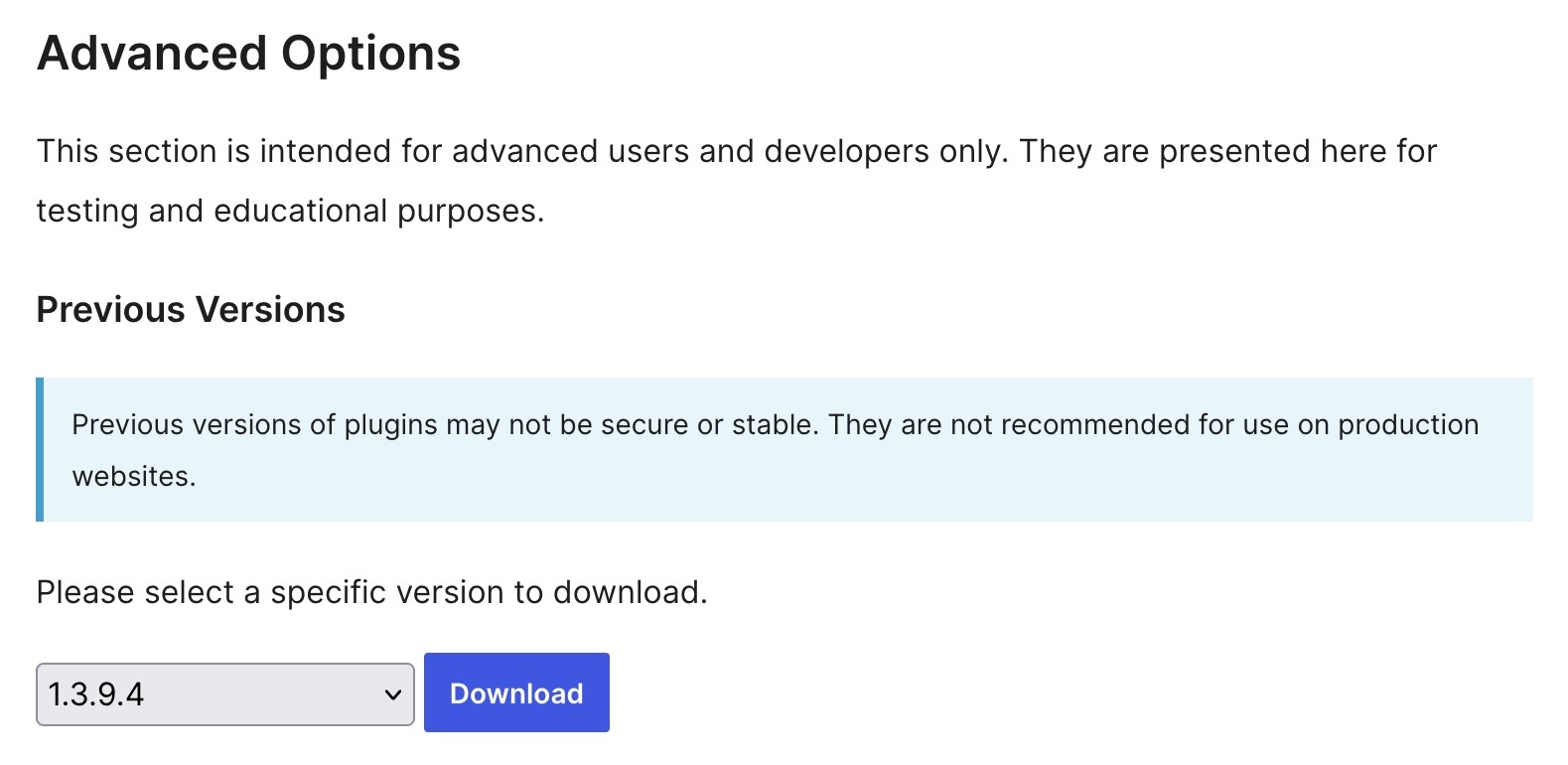
You can go to “Plugins” (/wp-admin/plugins.php), scroll to the “Asset CleanUp: Page Speed Booster” plugin and “Deactivate” and then “Delete” it. After you do that, you can go to https://wordpress.org/plugins/wp-asset-clean-up/advanced/ (“Advanced View” tab should be selected), scroll to “Advanced Options”, and you will notice there the “Previous Versions”. Select the version you want, and then click “Download”.
In the print sceeen below, version 1.3.9.4 (older one) is selected as an example.
🟢 Using a plugin: “WP Rollback – Rollback Plugins and Themes”
For more convenience, depending on your preference, you could use a plugin to perform the same action. Note that they have a disclaimer, and you need to be careful when using it to avoid messing things up, and rolling back to a broken version. Ideally, if you use this plugin, you should be the administrator and have access via SFTP or other similar way to access the plugin files and delete them (e.g. in case your Dashboard becomes inaccessible as a result of rolling back to a previous version that happens to be incompatible with any of your active plugins, you might need to delete the rolled-back plugin from /wp-content/plugins/).
Once you activate the “WP Rollback” plugin, go to “Plugins” (/wp-admin/plugins.php), then scroll to the plugin you want to have a rollback (older version). If the plugin is within the WordPress.org repository (Asset CleanUp Lite is there), you will notice the “Rollback” link next to other ones such as “Activate”, “Deactivate”, “Delete”, etc.